Shopee's New Business Advice Feature Tells You Where Your Next Sale Is Coming From
Erra25 Jun 2026 03:22ENCopy link & title
Business Advice is Shopee's fix for that. It's a new module on your Seller Centre homepage that already knows what your shop needs and puts it right in front of you. No more digging or guessing.

What Is Shopee Business Advice?
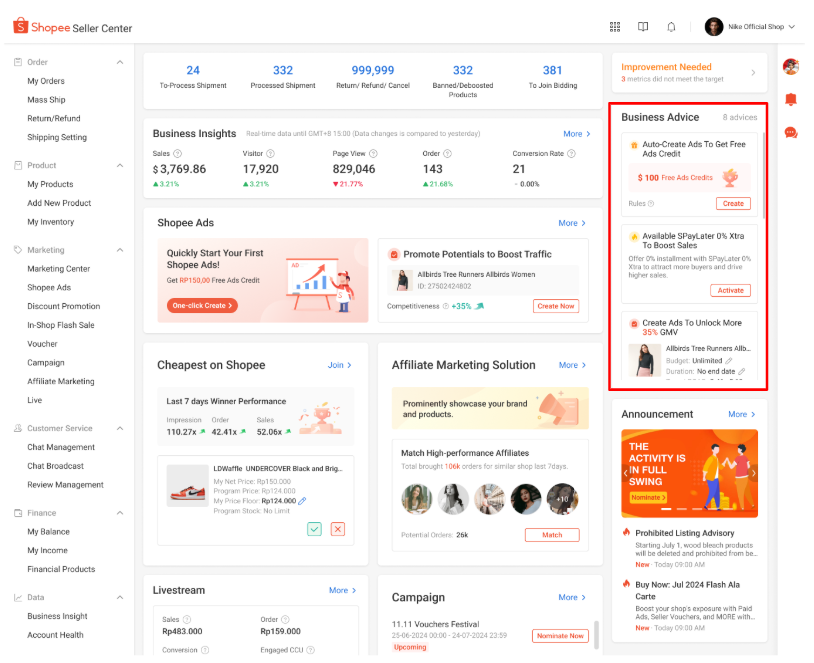
Business Advice is a personalised module that lives on your Seller Centre homepage. It pulls together growth opportunities from across the platform such as ads rewards, seller missions, programmes, alerts and ranks them by what's most worth your attention right now.
It's available at:
-
Shopee App: on your Seller Homepage, below your order status and feature shortcuts
-
Shopee Seller Centre: on the homepage, right column above the Announcements section
The 3 Types of Shopee Business Advice Cards
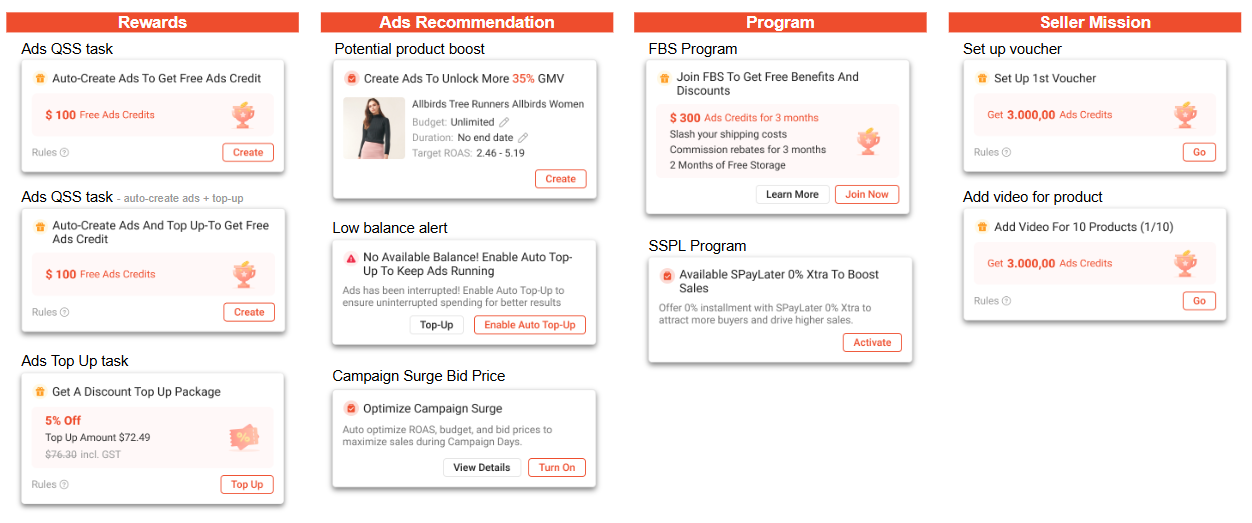
Recommendations show up as cards in one of three categories:
1. Rewards
Ads Credits, programme incentives, limited-time offers, these cards flag rewards you can actually claim. Many come with eligibility conditions, so check the terms before acting.
2. Growth Opportunities
Actions that can push your sales or traffic higher like activating a new ad type, joining a Shopee programme, or tightening up your product listings.
3. Action Required
Urgent alerts that need a response, like a low Ads balance or account details that need updating before something breaks.
Note: The module only shows what's relevant to your shop right now. A low-balance alert won't appear unless your Ads balance is actually running low. Every seller sees a different set of cards.
How Shopee Decides What to Show You
The recommendations aren't random. Shopee prioritises cards based on three things:
-
Your shop's current situation: activity, status, and features you're already using
-
Potential impact: actions likely to increase sales, drive traffic, or unlock rewards
-
Time sensitivity: expiring rewards, limited-time offers, and upcoming campaign windows get bumped up
As your shop changes such as balance topped up, mission completed, campaign ended, the module updates to reflect what matters next. It's a live view, not a static checklist.
New Shopee Seller? There's a Dedicated Path for You
Haven't received your first order yet? Business Advice won't throw a wall of recommendations at you. Instead, it walks you through a structured sequence:
-
Shop and listing setup: get your store profile and products in order
-
Promotions: set up vouchers and deals to give buyers a reason to choose you
-
Ads and programmes: expand your reach once the foundation is solid
This sequence is fixed on purpose, it's built to get you to your first sale as efficiently as possible. Cards during this onboarding phase can't be dismissed.
How to Use Shopee Business Advice
Acting on a Card
Each card has a single action button. Here's what happens when you tap it:
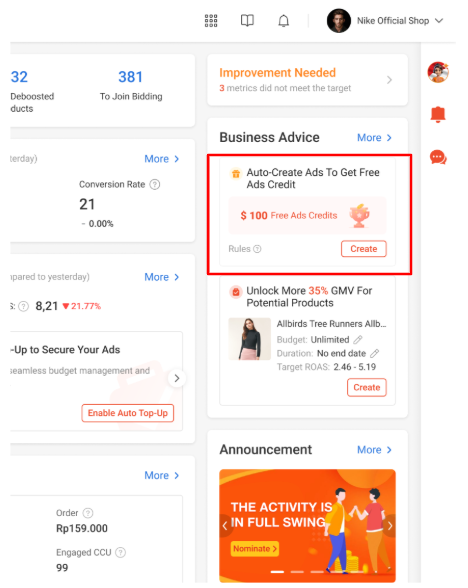
One-Click Actions (e.g. Auto-Create Ads) Tap Create. Shopee builds the ad in the background automatically. A confirmation pop-up appears, and your next recommended action is shown right away.
Redirected Actions (e.g. Top Up, Join FBS) Tap the action button and you're taken to a pre-loaded page, a discounted top-up package already selected, or the FBS sign-up page ready to go.
Mission Completions (e.g. Set Up Voucher) Tap Go, complete the task on the landing page, then come back and tap Claim to collect your reward. The card clears once it's done.
After any completed action, a pop-up confirms your reward and points you to what's next.
See Everything at Once
The homepage shows your top recommendations only. Tap More to pull up the full personalised list.
Check Card Rules Before You Act
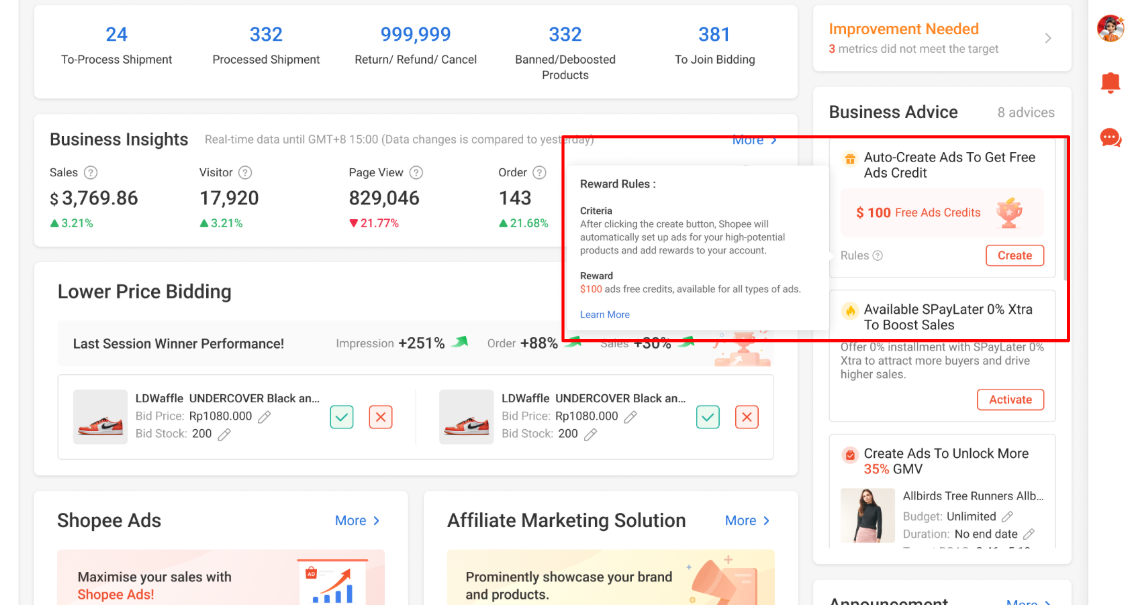
Rewards cards often have conditions such as minimum top-up amounts, sign-up deadlines, and so on. Check them before committing:
-
On PC: Hover over the card and click Rules
-
On App: Tap the Rules link on the card itself
Dismiss What Doesn't Apply
Not every recommendation will be relevant. To get rid of one:
-
On PC: Hover over the card and click the dismiss button
-
On App: Tap … and select Not interested in this advice
Dismissed cards are hidden for one week and may come back if they're still relevant to your shop.
How Rewards and Ads Credits Work
-
Ads Credits land in your account within 24 hours of completing the qualifying action
-
Mission rewards require you to tap Claim once the mission is marked complete, they don't credit automatically
-
Check your balance anytime at My Finance › Ads Credits
Business Advice and Seller Missions, How They Fit Together
Business Advice doesn't replace Seller Missions. The full missions list is still accessible via the Seller Missions shortcut on your homepage.
What Business Advice does is surface the missions most relevant to your shop right now, directly on the homepage, so you're not scrolling through a long list to find what actually applies to you. It filters the signal from the noise.
Take Your Shopee Store Even Further with BigSeller
Once the orders start coming in, keeping up with everything manually gets old fast. Updating stock, processing orders, managing listings across your store, it adds up.
BigSeller is an e-commerce management platform that a lot of Shopee sellers in Malaysia already use to handle exactly that. Order management, inventory tracking, bulk listing tools, it's built to cut down the repetitive work so you're not glued to your screen doing things that could be automated.
If you haven't tried it yet, there's a free plan to start with, plus a 7-day VIP trial so you can test the full features before committing to anything.