
1. Updating Your Product Prices
When you participate in Shopee Real-Time Bidding (RTB), setting competitive prices is crucial to winning bids. There are two main ways to update your product prices: through the Seller Centre homepage or the Cheapest on Shopee landing page.
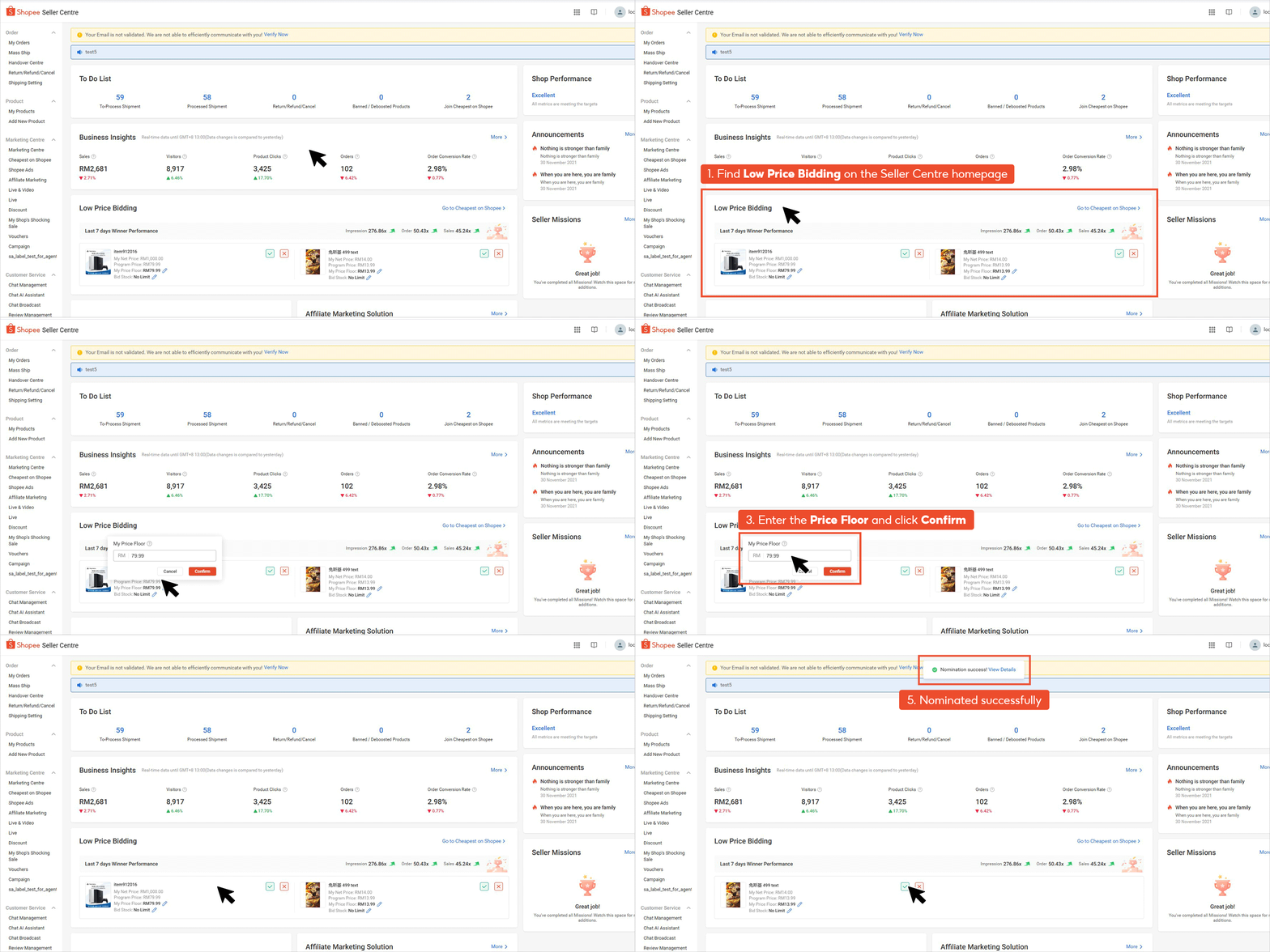
A. Through Shopee Seller Centre Homepage
This method is ideal for sellers who want a quick overview and price update directly from their main dashboard. Here’s how it works:
-
On the Shopee Seller Centre homepage, find the columns labeled My Best Price and My Program Price. These columns show the current bid prices for your products.
-
Next to My Price Floor, click the pencil icon. This allows you to edit your bid prices.
-
Type in the prices you want for both My Best Price (the price that gives you the best chance of winning) and My Program Price (the price offered for the program benefits).
-
Click the green button to confirm your updated prices. Your new bid is now active in the RTB system.
B. Through the Cheapest on Shopee Landing Page
This method is convenient if you want to manage your bids while monitoring ongoing bidding performance:
-
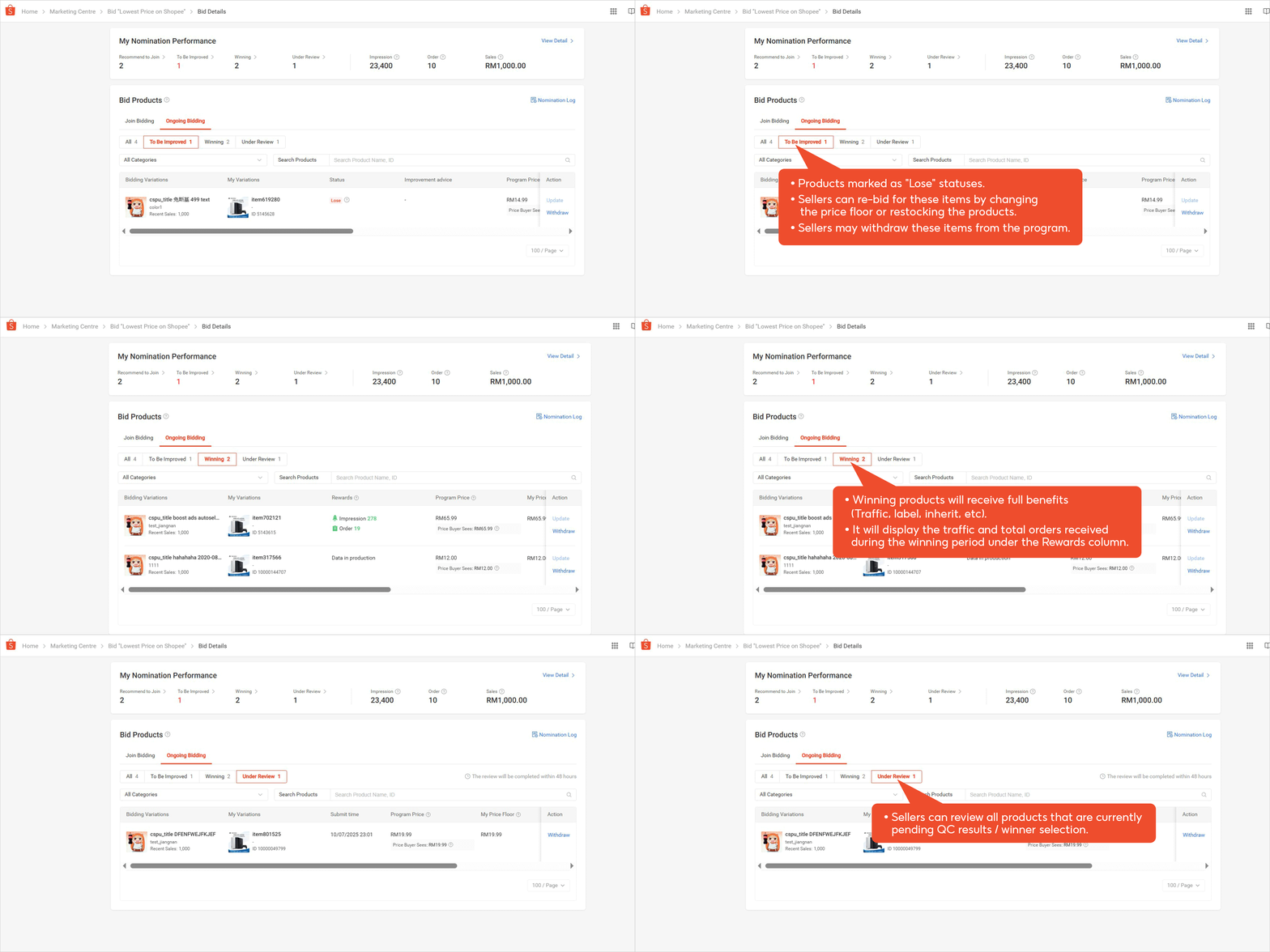
On the Cheapest on Shopee landing page, open the Ongoing Bidding tab to see your active bids.
-
Next to My Best Price and My Program Price, click the pencil icon to edit your prices.
-
Enter your new prices and confirm your bid. Changes take effect immediately.
2. Rebidding for Products with “Lose” Status
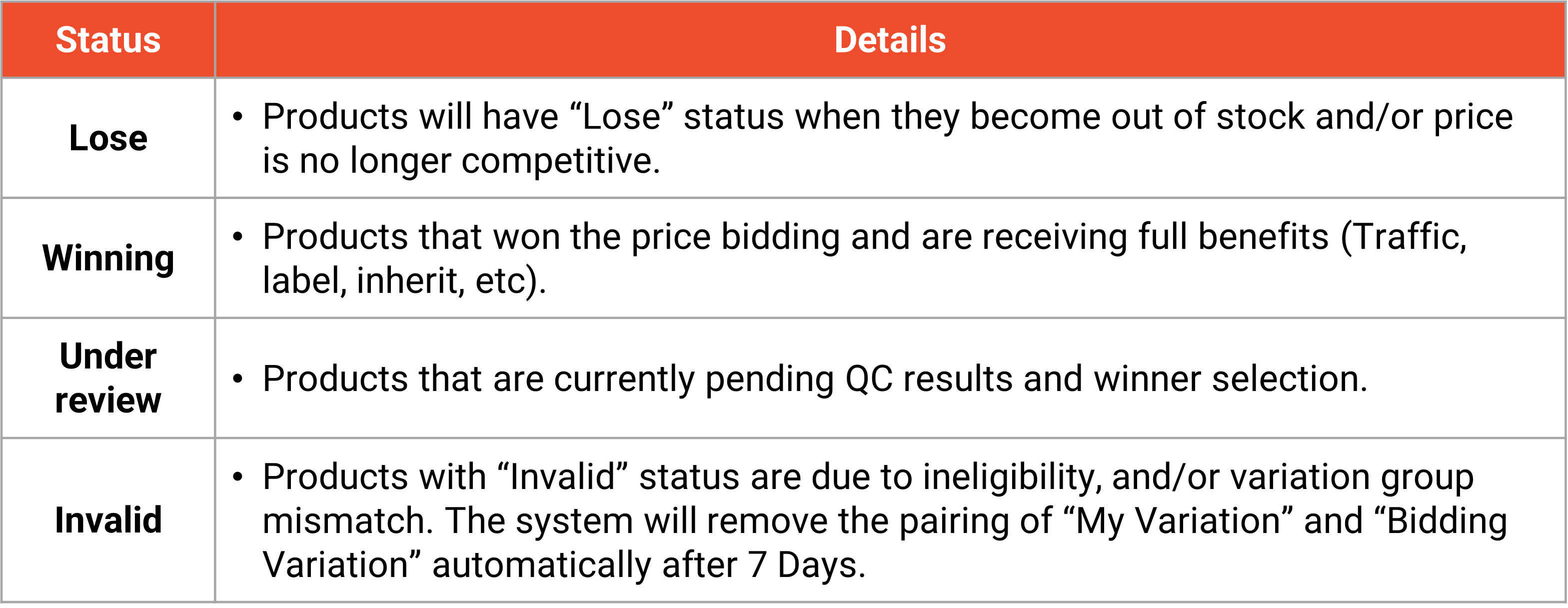
In Shopee Real-Time Bidding (RTB), not every bid will win. Some of your products may receive a “Lose” status. This usually happens for one of two reasons:
-
The product is out of stock.
-
The product’s price is no longer competitive compared to other sellers.
The good news is that losing products aren’t permanent losses, you can rebid and try to win again. Here’s how:
Steps to Rebidding
-
Open the Ongoing Bidding tab in your Shopee Seller Centre or RTB landing page to see all active and previously bidded products.
-
Adjust your My Best Price and My Program Price to make your product more competitive. Lowering prices strategically can help your product win the next round of bidding.
-
Submit your updated prices by clicking the green bid button. Your product is now rebidded and re-entered into the RTB program.
Other Important Bidding Statuses
It’s helpful to understand the different statuses your products can have:
-
Winning – The product won the bid and enjoys full program benefits, such as increased traffic, labels, and inherited benefits.
-
Under Review – The product is pending quality check (QC) results and winner selection.
-
Invalid – The product is ineligible or has variation mismatches. Invalid products are automatically removed from bidding after 7 days.
Monitoring Your Bidding Performance
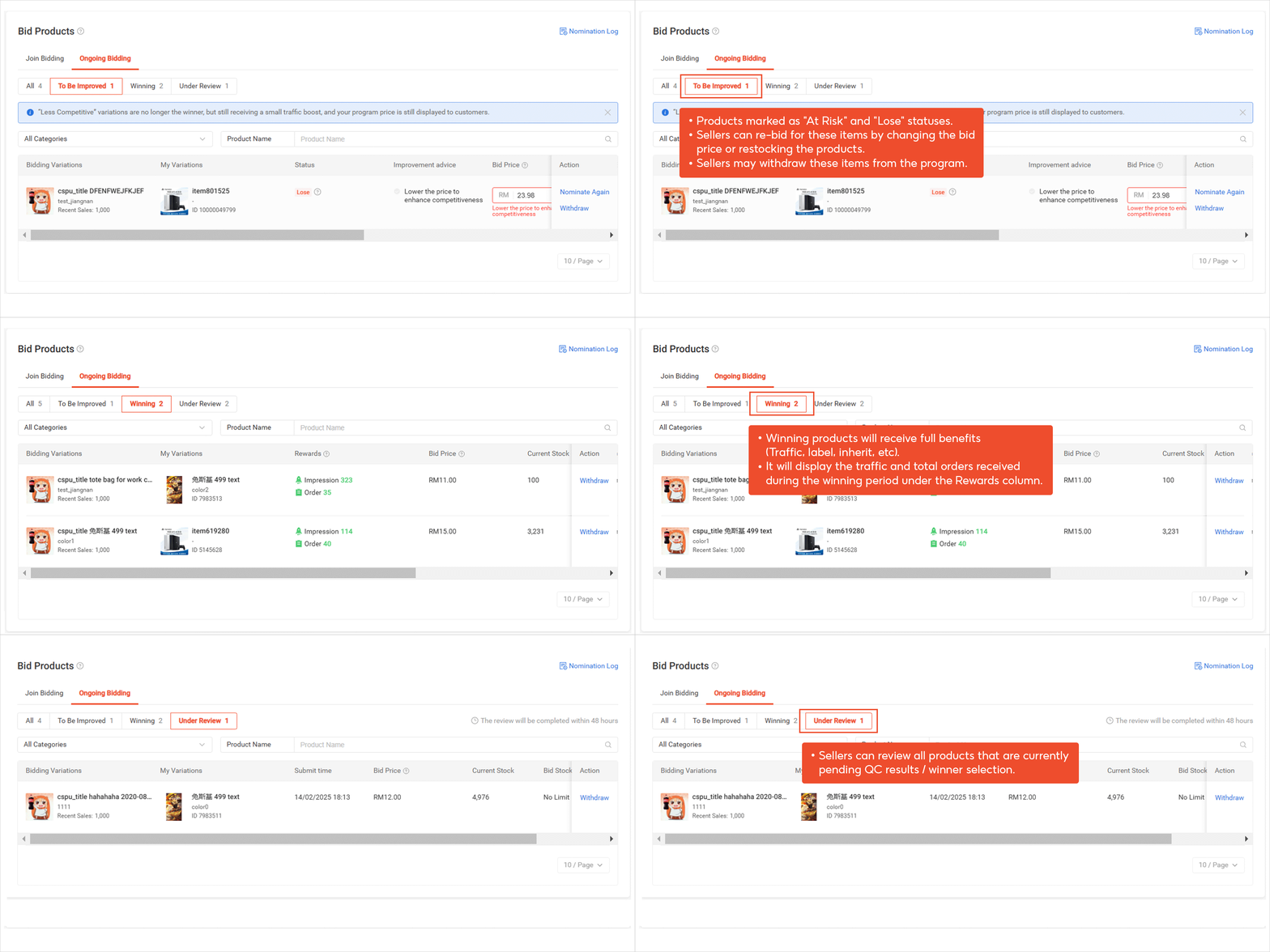
After joining RTB, you can track how your products are performing:
-
To Be Improved – Products that need better pricing to become competitive.
-
Winning – Products that have successfully won bids.
-
Under Review – Products awaiting QC results before the winner is confirmed.
3. Tracking Your Bidding Performance
Once you start participating in Shopee’s Real-Time Bidding, it’s important to monitor your products’ performance so you can make data-driven decisions. Shopee provides two main tools to help sellers track RTB results: Bidding Performance Details and the Bidding Log.
A. Bidding Performance Details
This tool gives you real-time insights into how each bidded product is performing in terms of visibility and sales.
Steps to check performance details:
-
Go to the Price Bidding Landing Page.
-
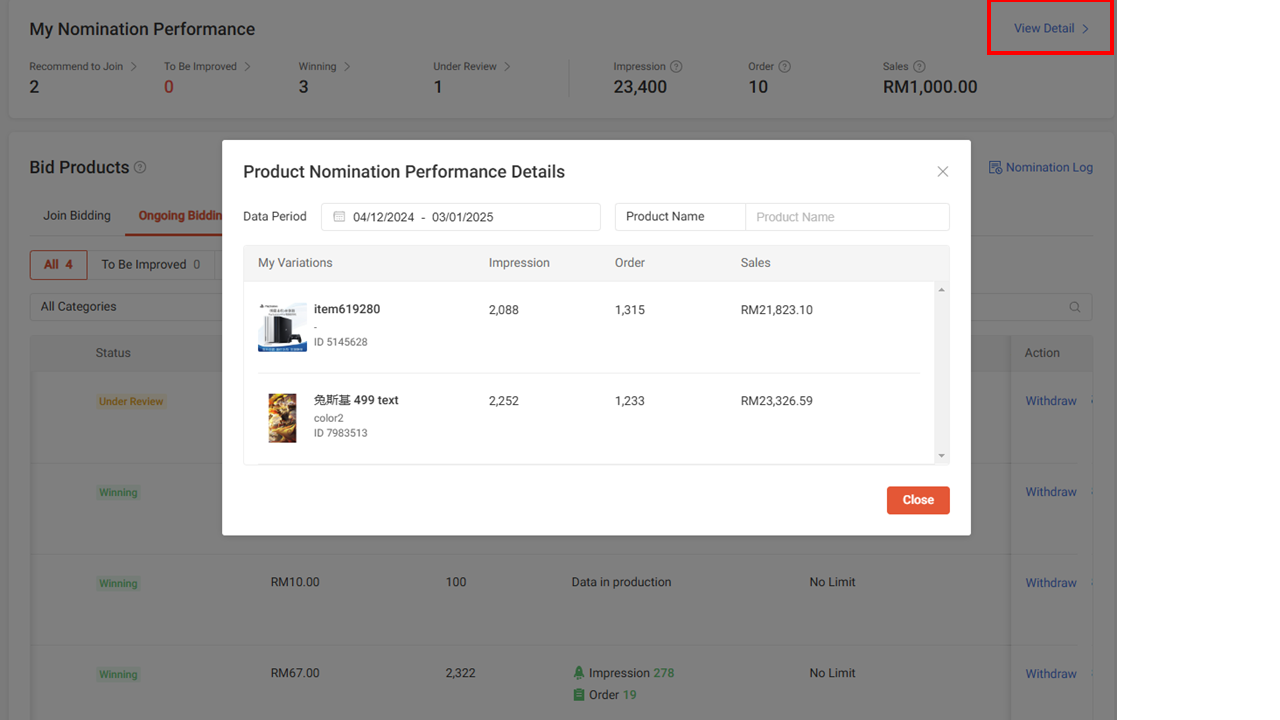
Under My Bidding Performance, click View Details.
-
Review key metrics for each product, including:
-
Impressions – How many times your product was shown to buyers.
-
Orders – The number of orders your product received through the bidding program.
-
Sales – Revenue generated from each bidded product.
-
Use these metrics to see which products are performing well and which may need price adjustments or rebidding.
B. Bidding Log
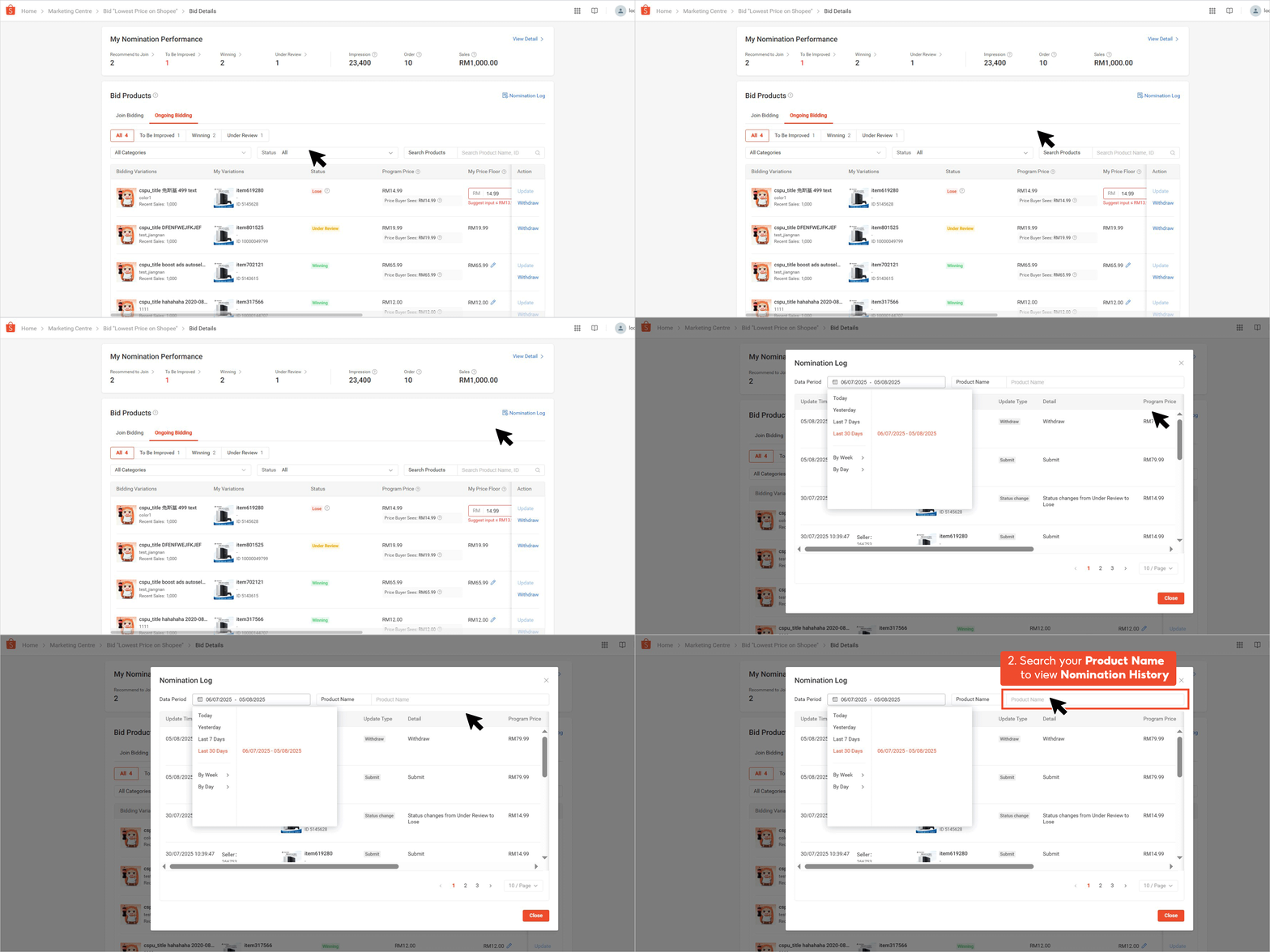
The Bidding Log allows you to track your bidding activity over the past 30 days, giving you a historical view of your RTB participation.
Steps to access the bidding log:
-
Go to Bid Details.
-
Under Bid Products, click the Nomination Log.
-
Search for a product by name to view its Nomination History, including past bids and status changes.
4. Withdrawing Products from Real-Time Bidding
There may be times when you want to remove a product from Shopee’s Real-Time Bidding (RTB) program, for example, if it’s not performing well or you need to adjust your pricing strategy. The withdrawal process depends on your product’s current bidding status.
A. Withdrawing Products via Shopee Seller Centre
The rules differ based on your product’s status:
-
Winning products – Can be withdrawn after 24 hours of winning the bid.
-
Other statuses (Lose, Under Review, etc.) – Can be withdrawn anytime.
What happens after withdrawal:
-
If the product has pre-matched variations (i.e., variations already paired in the bidding system), it returns to the Recommend to Join tab.
-
If not, it goes back to the Explore More to Join tab.
Steps to withdraw a product:
-
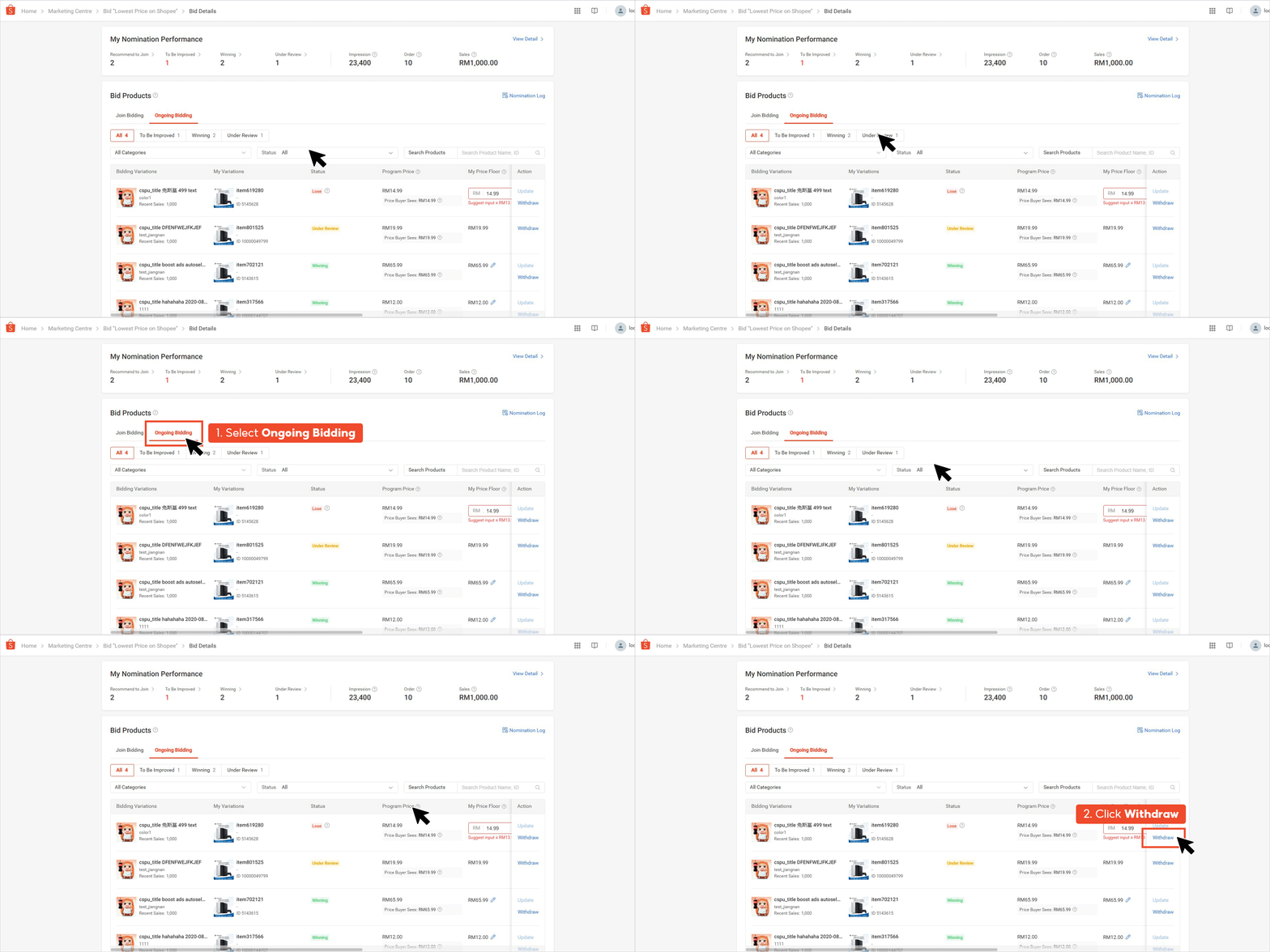
Go to the Price Bidding Landing Page and open the Ongoing Bidding tab.
-
Select the All tab to view all active products.
-
Click Withdraw next to the product you want to remove.
-
Confirm the action in the pop-up message.
B. Withdrawing Products via Customer Service
If you prefer, you can also request product withdrawal through Shopee Customer Service. To do this, provide the following information:
-
Shop ID / Username
-
Product URL / Product ID
-
Variation ID / Variation Name
-
Campaign Name
-
Reason for withdrawal
Final Tips for Shopee Sellers
Managing Real-Time Bidding on Shopee can be complex, from updating prices and tracking performance to handling inventory across multiple products. BigSeller simplifies all of this with a free, easy-to-use, and highly automated e-commerce ERP designed for Southeast Asian sellers.
With BigSeller, you can:
-
Manage products and campaigns across Shopee, TikTok Shop, Lazada, and more in a single dashboard.
-
Automate bidding and pricing updates to stay competitive with minimal manual effort.
-
Monitor orders, inventory, and sales performance in real time, reducing errors and overselling.
-
Access professional support, training, and local service offices across Southeast Asia.
Try BigSeller for free today and take full control of your Shopee selling experience.